
🚀 VClaw Setup Guide
Get VClaw running in 5 minutes. Follow the steps below.
1. 📥 Installation
VClaw supports both Windows 10/11 (x64) and macOS (Apple Silicon & Intel). Pick the installer for your machine:
| OS | Installer | How to run |
|---|---|---|
| macOS | VClawInstaller.pkg | Open → "Continue" → launch from Launchpad |
| Windows | VClawInstaller.exe | Open → "Next" → launch from Start Menu |
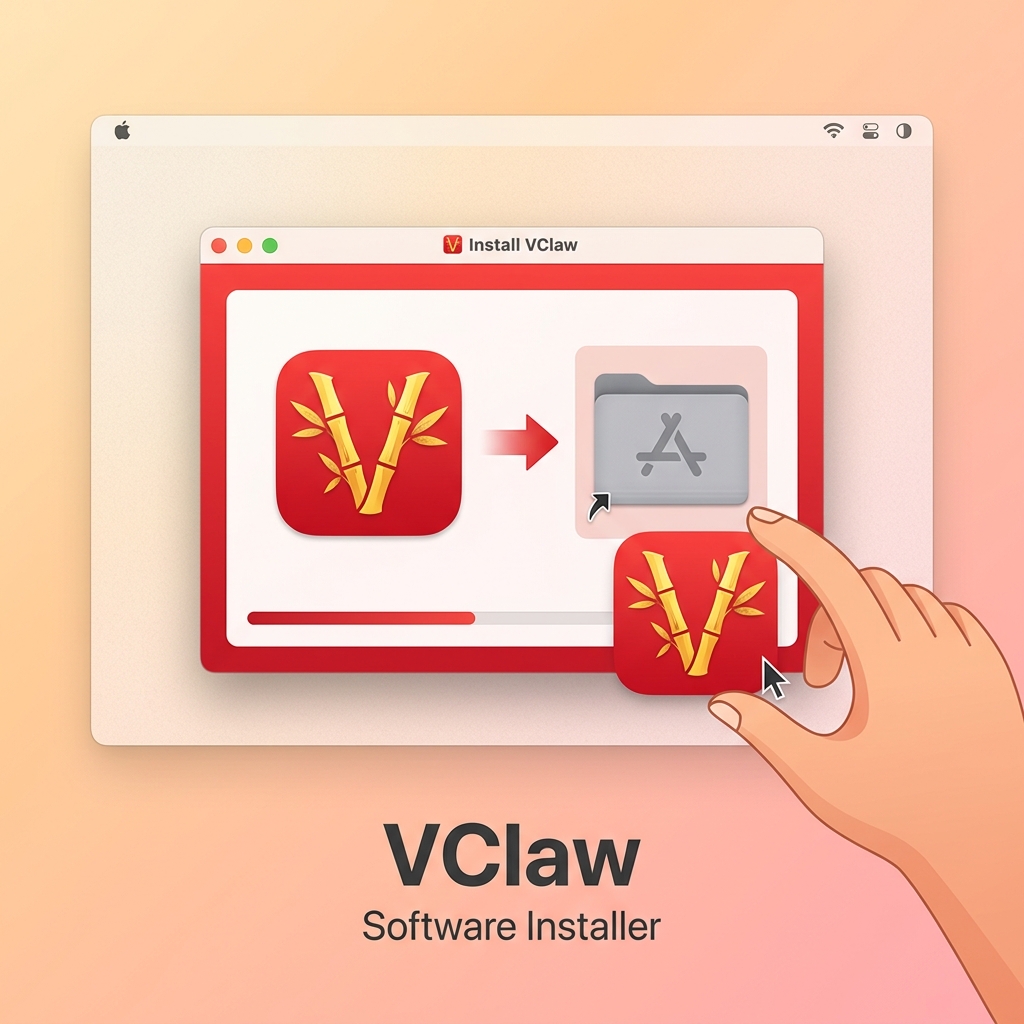 VClaw runs on both Windows and macOS
2. ⚙️ Initial Configuration
Go to Settings in the left sidebar and complete these two sections.
Step A: System & Automation
In the Workspace tab, choose how the AI will help you:
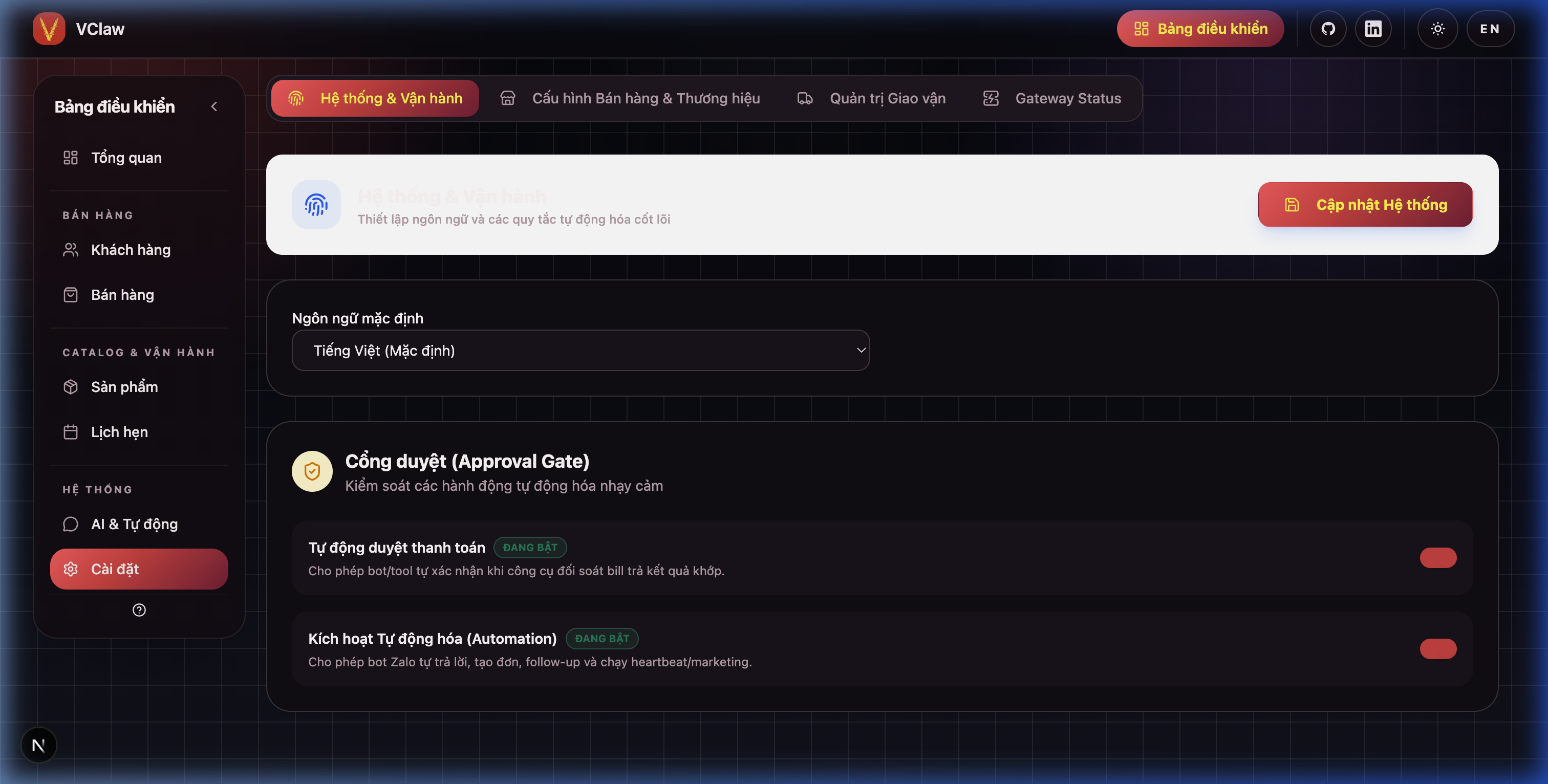
- Default Language: Set to English for natural AI responses.
- Auto-approve Payments: Let AI auto-match bank transfers and report success instantly.
- Enable AI Automation: Let AI categorize chats and suggest sales tasks.
Step B: Shop & Bank Info
Switch to the Bank tab to set up your store identity:
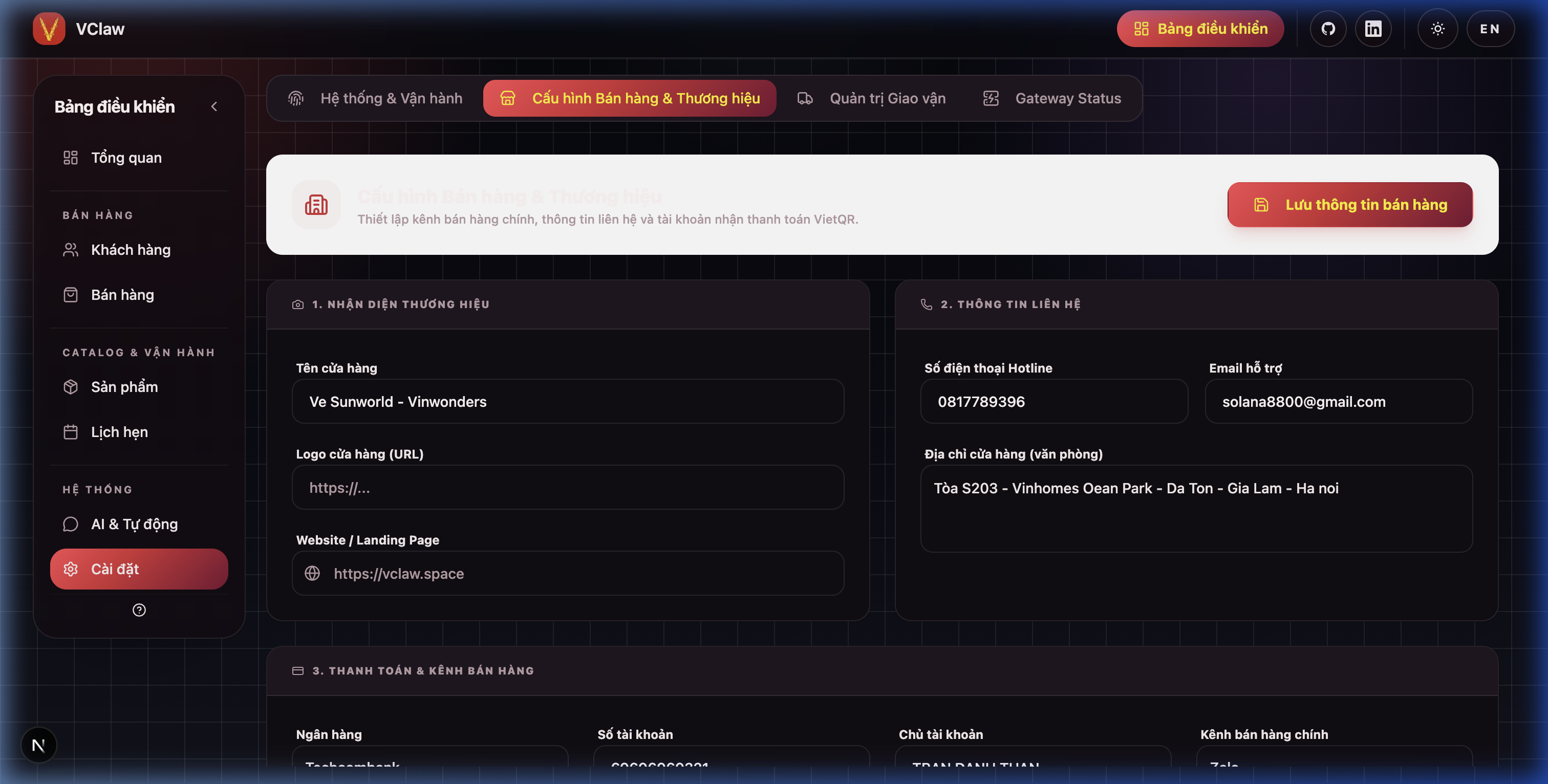
- Shop Name: Your brand name (shown on customer notifications).
- Bank Info: Account Number and Holder Name. AI uses this to generate VietQR codes.
- Primary Channel: Pick Zalo or Messenger for AI script optimization.
3. 🤖 Connect DeepSeek AI (WebAuth)
Run AI on your free DeepSeek account — sign in once, no API key needed.
Open Settings → Gateway Status:
- Pick DeepSeek from the model dropdown.
- Click ✨ Activate WebAuth → browser opens
chat.deepseek.com. - Sign in to DeepSeek (Google/Email). VClaw captures the session.
- Return to the app, wait for the toast "WebAuth activated successfully!".
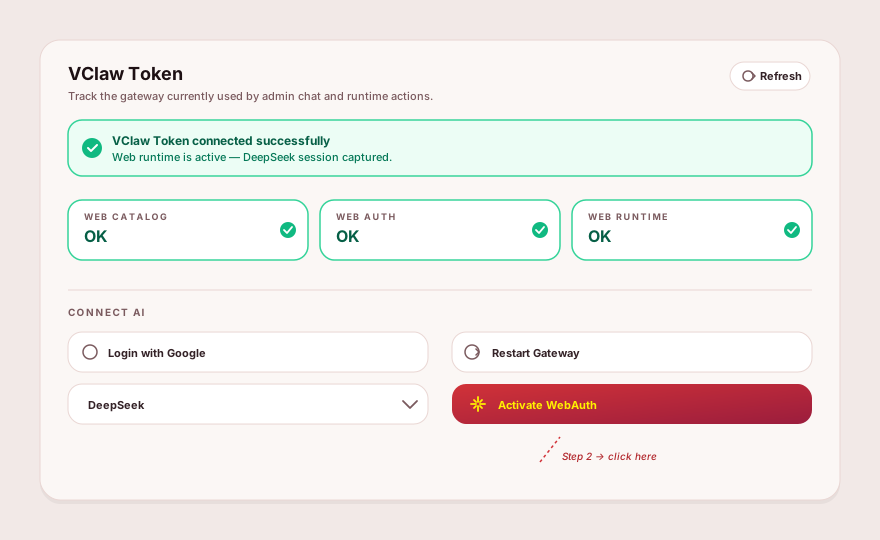
✅ Success when: green banner "VClaw Token connected successfully, web runtime is active." + all three Web catalog · Web auth · Web runtime pills show OK.
4. 🔄 Restart Gateway & verify
After login (or any config change), restart Gateway once to apply.
Same Gateway Status card:
- Click 🔄 Restart Gateway → wait ~3 seconds.
- Toast "Gateway restarted successfully!" appears.
- Click Refresh to update the status immediately if needed.
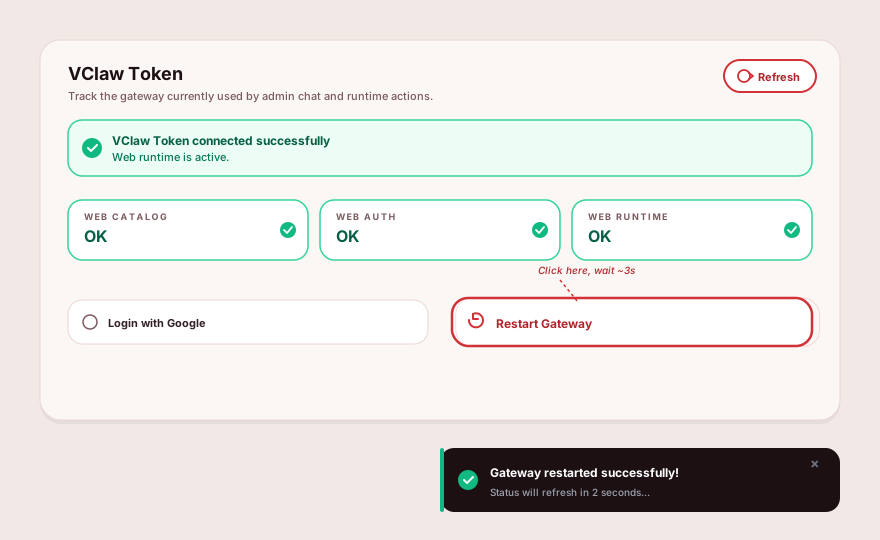
✅ Ready: green banner + all 3 pills OK. ⚠️ "WebAuth not successful" → go back to Section 3. ⚠️ "Incompatible model" → click Restart Gateway once more.
5. 💼 Recruitment & LinkedIn Integration
Go to Settings in the left sidebar and select the Recruitment tab to configure:
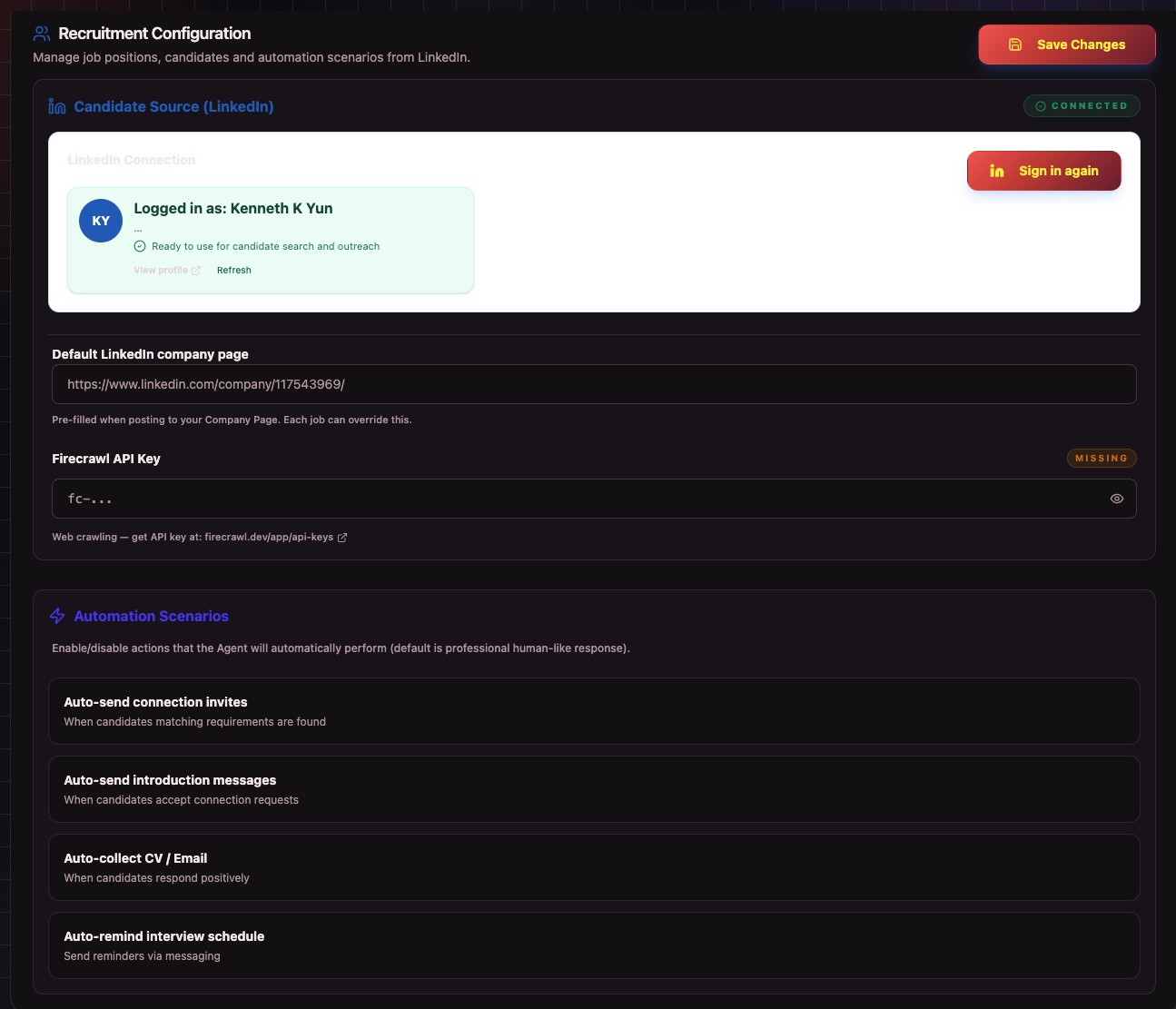
- LinkedIn Connection: Click Connect LinkedIn (or Open Browser) to sign in. Status flips to Connected when done. You can also Load session from file if available.
- LinkedIn Company URL: Paste your organization's LinkedIn Page URL — AI tracks postings here.
- Automation Rules: Toggles for auto-invite on JD match, auto-intro on accept, auto-collect contacts on positive replies, and interview reminders.
Note: VClaw stores all data directly on your computer (Local-First) — full privacy.